VV Ultimatum Guides for a first session and safer resets
VV Ultimatum Guides use the verified Roblox listing for the game frame and source-labelled candidate data for everything else, with community details kept as warnings.
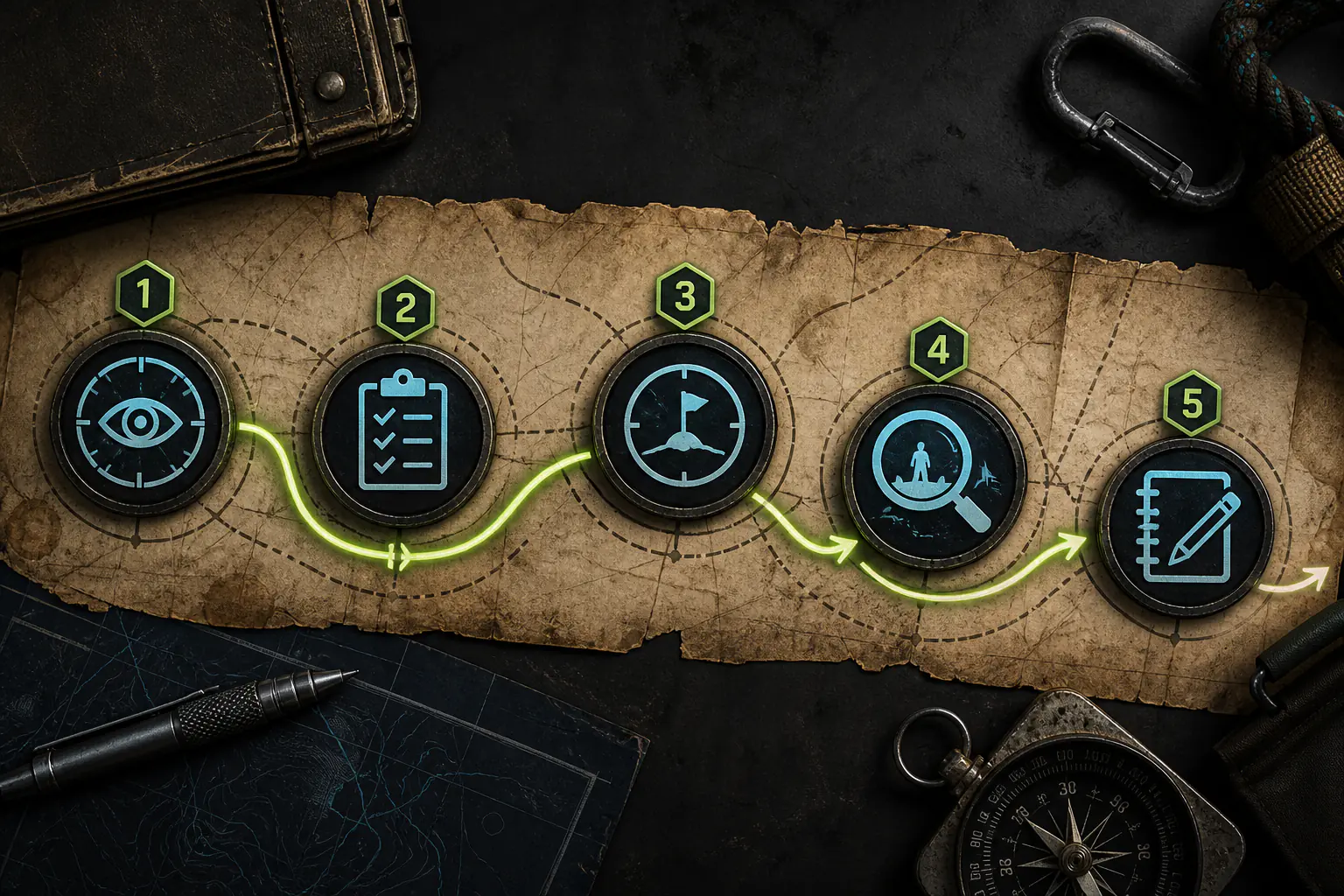
A first session stays small: observe, check, choose one job, verify it, then record the next decision.
Beginner Guide
Your first useful play session
Best for a new character or a returning player who does not know what to do next.
1
Learn the live controls
The official Roblox listing says controls are listed in game. Open that panel first and verify movement, block/parry, interaction, Sense and menu on your current device.
2
Choose one faction route
The game describes progression around a chosen faction. Avoid spending across several route ideas before you know which unlock you are pursuing.
3
Practice the combat loop
Use low-risk enemies or training opportunities to learn attack, block/parry, posture and movement before attempting a progression fight.
4
Spend toward one immediate job
Pick one near-term job—survive, move, deal weapon damage, use Kido, or preserve resources—and spend only after the live UI shows the relevant tree and cost.
5
Record owned items before comparing
Open your Charm and Equipment panels, choose only things you own, then use Quick Mode to avoid retyping candidate names.
The official listing explicitly says controls are listed in game. Older public key tables disagree after remaps, so this guide does not publish one universal keyboard/controller table.
Do not remap until you have located block/parry, counter, movement, interaction, Sense, menu and faction-specific actions.
Progression: one unlock at a time
Choose the next visible unlock, record its exact requirement, complete it, then confirm the resulting UI. This prevents a faction route from becoming a long chain of copied assumptions.
Unlock checkpoint
Follow one requirement visible in your game
Where: your current objective or unlock panel. Do: copy the exact requirement, complete only that step, then reopen the panel. Success: the current UI marks it complete or reveals the next step. Stop: if the requirement is absent or contradicts an old guide.
Travel checkpoint
Verify the destination before spending
Where: the current travel UI or visible destination marker. Do: confirm the displayed destination and cost before accepting. Success: the destination name matches what you chose. Cancel: if the cost, route or return path is unclear.
Source and date
Why these are checks, not a walkthrough
The verified Roblox listing points players to the in-game Controls panel. The current source cut is 2026-08-01. It does not support exact NPC, map or unlock chains, so those details stay out until field-complete evidence exists.
Progression / Reset Guide
Stop before an irreversible reset
Before committing
Write down current faction, level, attributes, build points, selected skills, traits, ability, weapon, charms and equipment.
Read the whole confirmation
Confirm which layer is affected: one skill, all skills, build points, ability, clan, trait, weapon, or the whole character.
Check the cost
Candidate reset routes mention items such as Prayer Beads, Hogyoku wishes and a Build Reset Token, but current costs and retained progress are not fully verified.
Cancel when retained progress is unclear
Do not infer that attributes, build points, skills, traits, equipment or progression survive. Unknown is a stop sign for irreversible actions.
Verify after the reset
Compare the resulting UI with your written snapshot before spending again.
Known gap: this site does not yet have a current, complete retained/lost matrix for each reset route. Until that closes, it will not recommend pressing Confirm.
Guide questions
What should I do first?
Open the live Controls panel, choose one faction route, practise the combat loop, then pursue one visible unlock.
Can I trust an old keybind table?
No. The official listing directs players to the in-game controls, and public tables can lag remaps.
Should I use a reset to fix an early mistake?
Only after the current confirmation shows the cost and what is retained or lost. Cancel if that is unclear.
Where do I compare my owned items?
Use the Charm Loadout Planner or Equipment Comparator after Quick Mode loads the candidate names you own.